An AI coding agent needs a specific task and a repository it can access; a GitHub Projects board alone supplies neither. Set up the board in GitHub first, then make its issues clear enough that an agent can work without guessing. You can do all of this with GitHub. Gitsu is an optional way to manage the same board and, on its paid desktop plan, let a compatible agent read and update board fields through MCP.
How do I copy a GitHub Projects starter kit into my repository?
Start with a repository that contains useful issue forms and an agent workflow, then create the board separately. The GitHub Projects Starter Kit is a public MIT template repository with three issue forms, setup instructions, example issues and copyable agent prompts.
For a new code repository, choose Use this template on the kit and create a repository. For an existing repository, copy the three YAML files under .github/ISSUE_TEMPLATE/ into the same directory in your repository, keeping any existing forms you still need. GitHub's issue chooser uses forms on the repository's default branch. Issue forms turn submitted answers into a normal issue body, so an agent can read them through the same GitHub tools it uses for other issues.
The important boundary: creating a repository from this template copies files. It does not create a GitHub Project, configure its fields or views, or add the example backlog as live issues. The examples are fictional Markdown files. You will configure the board and create real issues in the next steps.
If you already have a project, keep it. The kit's forms are optional input structure; they do not require a new project or Gitsu.
How do I create and configure a GitHub Project for agent work?
Create one Project for repositories that share a backlog, then give it fields and views that show readiness and review. GitHub Projects can track issues, pull requests and notes, and its views let you filter, group and sort items for different jobs.
-
On your GitHub profile or organization, open Projects, select New project, choose a blank Table, and name it. If the backlog spans repositories, create the project under the account or organization that can see those repositories.
-
Keep GitHub's built-in Status field. Add Priority and Size as single-select fields. In table view, use the add-field control at the right end of the header, select New field, enter a name, choose Single select, add options, and save.
-
Use these options as a starting point:
Field Options Status Backlog, Ready, In progress, In review, Done Priority Urgent, High, Normal, Low Size Small, Medium, Large The kit uses these meanings: Backlog means the request still needs clarification or scheduling. Ready means the outcome, scope, acceptance criteria, dependencies and verification are clear enough to begin. In progress means someone has taken ownership and started work. In review means the implementation and evidence are available to a person who can review them. Done means the agreed change is delivered and the acceptance criteria have been checked.
-
Add three views from the view menu. Set each layout, filter and grouping, then save it:
View Layout Filter Group by Backlog Table is:open status:Backlog,ReadyStatus Active work Board is:open status:Ready,"In progress","In review"Status Review queue Table is:open status:"In review"None -
Keep the unfiltered view as All items and show Title, Assignees, Status, Priority and Size in the tables. Add a real open issue and set its Status before debugging an empty filtered view.
This distinction gives the agent a useful queue without asking it to decide what is ready. If a request is vague or has an unresolved dependency, leave it in Backlog. Move it to Ready after someone answers the questions that change scope or behavior. A closed issue can be a duplicate or declined request, so do not treat every closed item as shipped work.
These options and filters are the kit's recommended starting point, not rules GitHub imposes on every project. Rename them if your team uses different stages. GitHub's single-select field guide documents the add-field steps; its view guide shows how to create and save views.
How do I turn a rough request into an agent-ready issue?
Write an issue whose result can be checked from the repository, then leave it in Backlog until its unanswered decisions are resolved. A form can collect the right details; it cannot establish that the answers make sense.
For a bug, describe the observed behavior and the expected behavior. For a feature, say who needs the change and what outcome they need. For implementation work, name the intended change, the files or area in scope when known, and what should stay out of scope. Add acceptance criteria a reviewer can verify. Use the repository's real test or build commands rather than asking an agent to “run the tests” when the required check is more specific.
Here is a complete example adapted from the kit's fictional Pocket Notes issue. Copy its structure and replace its product and code details with a real issue from your repository:
# Preserve a draft after a failed save

Status: Ready · Priority: High · Size: Small

## Current behavior

In the fictional Pocket Notes app, enter a new note, disconnect the network,
and choose Save. The error appears, but the editor clears and the unsaved text
is lost.

## Outcome

A failed save leaves the user's draft available to retry.

## Acceptance criteria

- [ ] A refused save preserves the title and body in the editor.
- [ ] The UI explains that the save failed and offers a retry.
- [ ] Retrying after reconnecting saves one note with the original content.
- [ ] A successful first save still follows the existing completion behavior.

## Scope and context

Change the editor's save and error handling. Offline persistence across a
reload and background retries are separate work. Start with the editor and
its existing save tests; locate the equivalents in your app.

## Verification

Exercise successful, refused, and retried saves in the editor tests. Manually
repeat the disconnected-network reproduction. Run the repository's required
checks.
The issue names what fails, what should happen, what is in scope, what stays out, and how to verify the change. It does not tell an agent to invent a verification command or broaden the fix.
Before moving an issue to Ready, check that it has:
- An observable outcome and current behavior.
- Acceptance criteria that another person can check.
- A bounded scope, with important exclusions recorded.
- Dependencies resolved, or a clear independent piece of work.
- Verification steps drawn from the repository's instructions.
If a product or design decision is still open, ask the person who owns it and record the answer on the issue. Then set Priority and Size. The kit treats Size as review scope, not a guess at hours. A large or uncertain request is a cue to clarify or split it before handing it to an agent.
What should I hand to the agent, and what should I review?
Give the agent the issue body or a URL plus an authorized way to read it, and tell it which repository to work in. A URL by itself does not grant access. Ask it to check the repository instructions and working tree, implement only the agreed scope, run the listed verification, and report the changed files and results.
Take one issue at a time, confirm who owns it, and move it to In progress when work starts. The project status communicates the state of the work. It does not grant permission to edit code, push a branch, merge a pull request or release software. Those permissions come from the agent's environment, credentials and repository settings.
When the agent is finished, review the diff and its verification evidence. Move the issue to In review while a person checks the work. Move it to Done only after the change is delivered and its acceptance criteria pass. If a dependency blocks implementation, record the blocker and next action on the issue rather than leaving a successful-looking status behind.
Can I manage the same GitHub Projects board in Gitsu?
Yes. GitHub remains the source of truth, and Gitsu is an optional client for the board. Its free Web App manages the same GitHub Projects. The paid desktop app adds an MCP server for compatible coding agents; the server finds a board from the Git remote of the folder the agent is using, and it can read board items and fields or update fields through the running app.
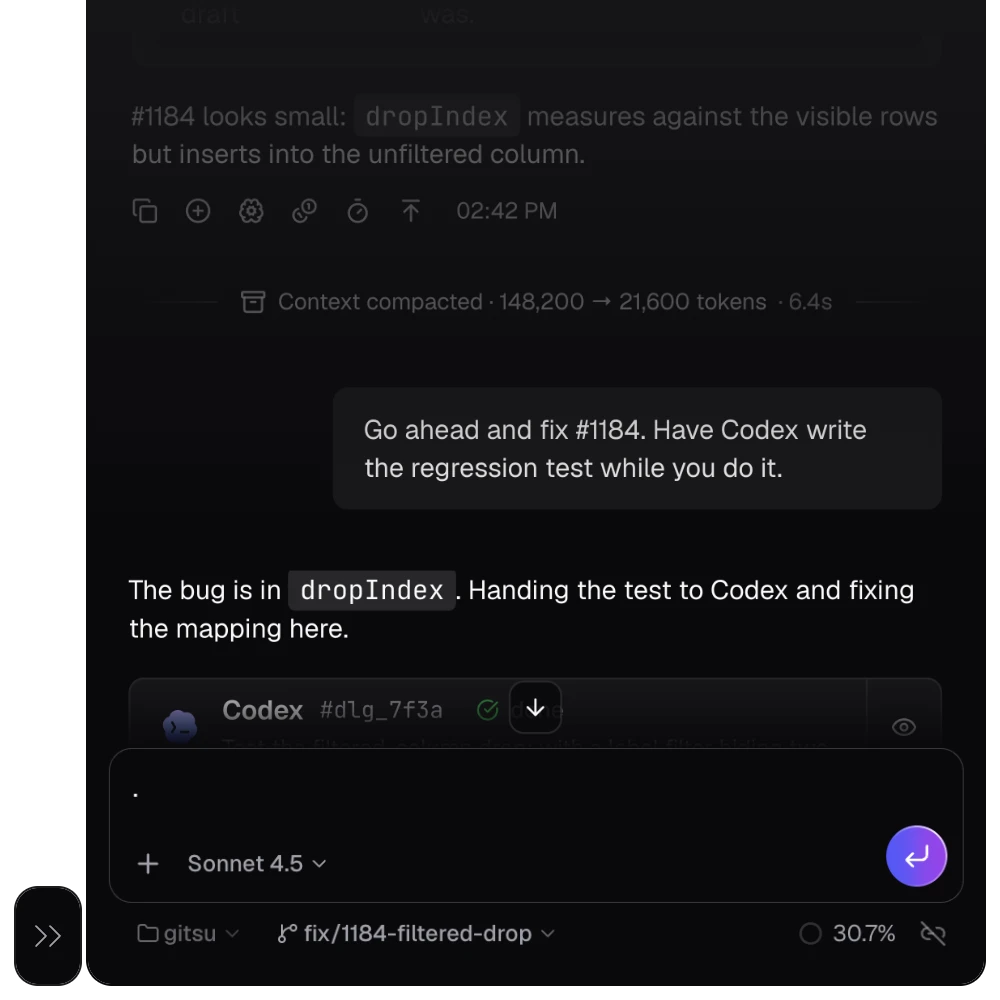
To try that path, sign in to the Gitsu Web App and connect the Project you just configured. If you want an agent to update board status through MCP, use the Gitsu desktop app and follow its MCP setup guide. MCP requires a paid Seat and the running desktop app for writes. Starting with a read of one known issue lets you confirm that the agent found the intended board before asking it to change a field.
GitHub's own interface remains the right baseline for issue forms, fields and saved views. The kit's repository template copies its files; configure the Project and add real issues separately. Gitsu is an optional board client, and its desktop app can give a compatible agent MCP tools for board reads and writes. For the full connection and implementation loop, see how to connect Claude Code to GitHub issues. For the fields and views themselves, see GitHub project board examples.
Frequently asked questions
Do I need MCP to use an AI coding agent with GitHub Projects?
No. The agent can read issues through another GitHub integration, and a person can update the Project fields. MCP is an optional tool interface for compatible agents that need to work with board items and fields.
Does the GitHub Projects Starter Kit create a project board?
No. It creates a repository containing the kit's files. Create the Project and configure its fields and views separately, then add actual issues to it.
What makes a GitHub issue ready for an AI coding agent?
The issue needs an observable outcome, checkable acceptance criteria, bounded scope, resolved dependencies and the repository's real verification steps. Keep it in Backlog while any decision that changes the work is unanswered.
Can Gitsu use my existing GitHub Projects board?
Yes. Gitsu connects to a GitHub Project you can access. Its free Web App can manage the same board; its paid desktop app provides the MCP server for board reads and writes by compatible agents.
Does project status give an agent permission to change code or merge?
No. Status tracks work. Code access and permissions to commit, push, merge or release depend on the agent's host, credentials, repository settings and instructions.
Try one issue on your GitHub Project
Create the Project in GitHub, add one real issue through an issue form, and check its scope and verification before moving it to Ready. If you want to manage that same board in a client and let a compatible coding agent update its board fields, open it in Gitsu; the free Web App manages the board, while paid desktop MCP avoids copying status changes back by hand.
How we checked
The Coduo starter kit’s actual boundary: repository-template generation copies files but does not provision a Project, its fields, views or live example issues. For the optional Gitsu path, its MCP server identifies the board from the repository remote in the agent’s working folder and reads the board fields it can write.
- https://github.com/Coduo-Studio/github-projects-starter-kit
- https://github.com/Coduo-Studio/github-projects-starter-kit/blob/main/docs/project-setup.md
- https://github.com/Coduo-Studio/github-projects-starter-kit/blob/main/docs/agent-workflow.md
- https://github.com/Coduo-Studio/github-projects-starter-kit/blob/main/examples/issues/01-failed-save.md
- https://docs.github.com/en/repositories/creating-and-managing-repositories/creating-a-repository-from-a-template
- https://docs.github.com/en/communities/using-templates-to-encourage-useful-issues-and-pull-requests/configuring-issue-templates-for-your-repository
- https://docs.github.com/en/issues/planning-and-tracking-with-projects/creating-projects/creating-a-project
- https://docs.github.com/en/issues/planning-and-tracking-with-projects/customizing-views-in-your-project/managing-your-views
- https://docs.github.com/en/issues/planning-and-tracking-with-projects/understanding-fields/about-single-select-fields
- https://docs.github.com/en/communities/using-templates-to-encourage-useful-issues-and-pull-requests/syntax-for-issue-forms
Frequently asked questions
Do I need MCP to use an AI coding agent with GitHub Projects?
No. An agent can read an issue through GitHub CLI or another GitHub integration, and you can update the project fields yourself. MCP is an optional way for a compatible agent to read or update board items through tools.
Does the GitHub Projects Starter Kit create a project board?
No. The repository template copies its files into a new repository. You still create the GitHub Project, configure its fields and views, and add real issues yourself.
What makes a GitHub issue ready for a coding agent?
A ready issue names the observable outcome, current behavior, checkable acceptance criteria, bounded scope, resolved dependencies, and the repository’s actual verification steps. If one of those is unknown, keep the issue in Backlog and clarify it before work starts.
Can Gitsu use my existing GitHub Projects board?
Yes. Gitsu manages GitHub Projects boards. Its free Web App can manage the same board; the desktop app includes an MCP server on paid plans, and that server finds a board from the repository connected to the agent’s working folder.
Does a connected agent get permission to change my code or merge a pull request?
A project status is a work signal, not repository permission. Access to code, commits, pushes, merges and releases depends on the agent host, its credentials, repository settings and the instructions you give it.
Try it on your own boardsGitsu opens your GitHub Projects boards in the browser. Sign in with GitHub and work on the same issues your team already uses.
Open the web app